Yea! Retain a backup of your Google data on your on own drive. Its about time!
Amazon’s drone delivery service

Incoming! 
What’s that buzzing? No cause for alarm, its just the latest installment of GTA flying at you. Catch!
Although not yet ready for primetime Amazon is hopeful that this small package delivery service will be start flying in 2016. If successful, it promises to drastically cut delivery time.
(Still no word on the flying cars we were promised)
Enjoy this video from Amazon.
Cheers!
hɔuᴉnb
Comments and questions are always welcome!


Happy Birthday, Windows

The year is 1985. Soviet leader Gorbachev meets with American President Reagan. Cocoa Cola unveils New Coke. Actor Rock Hudson dies of aids. Singer Madonna’s starts her first tour.
And on November 20, 1985, Microsoft releases Windows 1.0.
Unveiled in 1983, it would not be available for purchase until two years later. Arguably, that makes Windows 30 years old, but since many tricenarians, have a hard time with that milestone, we extend her two years grace..
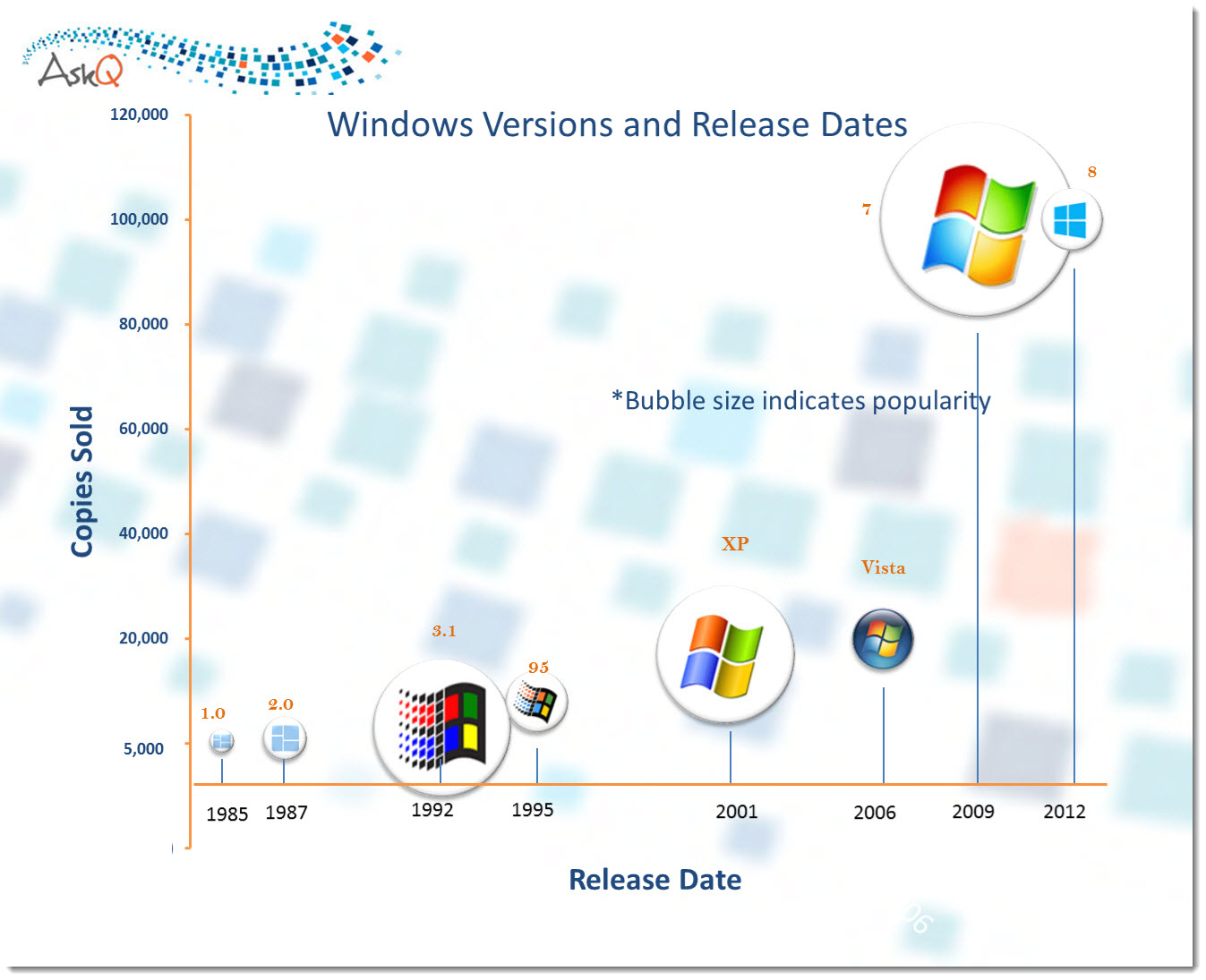
Over time her share of sales and public favor has varied, as illustrated by this infographic.
Timeline: Windows Logo Evolution
Going Retro
Like most twenty-somethings, the Windows logo has had her own experiments with style. Here’s a look back at fashions past.

Flashback: notice how similar the current Windows 8 logo is to the original!
Sharing Win’s birthday:
- Politicians Vice President Joe Biden & Senator Robert Kennedy
- Actors Bo Derek & Ming-Na Wen
- Athletes Dominique Dawes & Mark Gastineau
- Astronomer Edwin Hubble
Additional reading..
- Microsoft Windows is 30 years old (HEXUS.net)
- Microsoft Windows celebrates its 30th birthday (news.en.softonic.com)
Cheers!
hɔuᴉnb
Comments and questions are always welcome!
“404” and “fail” are the most popular words of 2013
“404”, “Fail” & “Hashtag; most popular words of 2013
Windows & iOS Tricks & Treats

Trick or Treat!
In honor of Halloween I am handing out treats and tricks! So reach in and fill your bag with this odd collection of operating system tips!
Windows 8 Trick or Treats
| TRICK | TREAT |
Hold  (the Windows key) and Press M (the Windows key) and Press M |
Shows DESKTOP (aka Minimize All) |
Hold  and press R and press R |
Opens RUN dialog |
| Hold and press E |
Opens Explorer window |
| Hold and press C |
Slide COFFEE CUP HOLDER out (aka CD Tray)* |
| Hold and press Print Screen |
CAPTURE & SAVE SCREEN The screen shot is saved automatically to your Windows Pictures Library; no filename/folder prompt |
*requires Windows 8.1SB (Starbucks edition).
iOS Trick or Treats
| TRICK | TREAT |
| With two fingers on the keyboard, pull outward (left & right) | Splits single keyboard into two for easier typing |
| On the lock screen, swipe the notification left to right | After inputting your password/pin, opens the item from the notification |
| Tap and hold Number button, swipe and select punctuation, then release | Select punctuation without requiring a switch between Numerica and Text keyboards |
| While holding down the menu button (the main button below the screen), press the power/lock button | Saves screenshot of the active screen to your camera roll |
And in case you missed it:
Google Celebrates Halloween With a Spooky Interactive Doodle
hɔuᴉnb
Comments and questions are always welcome!
Windows 8.1-What’s new?

Give me back my Desktop and Start Button!
Yes, we all complained, and millions of voices could not be silenced. Newer wasn’t necessarily better, so Windows 8.1 has returned some old features and improved some others. The desktop is now much easier to access (yay!), but the Return of the Start button, misses the mark. START is back, but only as a means to access the much maligned START screen (boo!).
Return of the DESKTOP
The only thing on my Windows 8 Start screen I ever used was the Desktop tile. So going from boot-up to START screen, and then clicking on Desktop was an extra and unappreciated step. Now, with 8.1, you can re-enable booting up with Desktop.
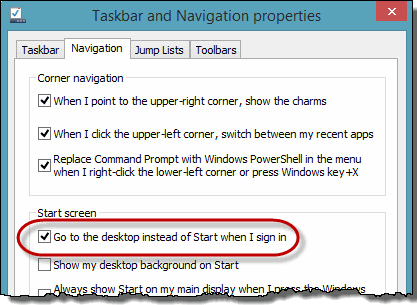
Additionally, you can
- Share the Desktop background with the Start screen,
- Control the Corner Navigation ‘aka: hotspopts’
To access, RIGHT + CLICK on the Taskbar , and select Properties, Navigation.
Better SEARCH
With Windows 8.1 your Search includes not only your local drive and apps, but also your SkyDrive and web results. And speaking about SkyDrive, there is better integration and support for SkyDrive users.
Better CONTROL PANEL
The Windows 8 PC Settings was an abbreviated version of the familiar control panel. With limited settings available, To make a setting change one either had to search for it, or access the legacy windows Control Panel. Windows 8.1 has made more control panel applets accessible under Settings (although I still find it easier to use the search option to locate the setting I am tweaking).
Easier TILING (aka ‘SNAP’)
The Windows 8 SNAP feature was (sorry) annoying, mostly in that you could not control the size of the windows you were tiling. Windows 8.1 improves this feature by allowing you to control the size of the tiled (oops, I mean SNAPPED) windows.
Additional articles to peruse:
- Windows 8.1 tips, secrets and more (thenewstribe.com)
- What You Need to Know About Windows 8.1 (howtogeek.com)
- Windows 8.1 is here: Can it win over skeptical PC buyers? (zdnet.com)
- Windows 8.1 review (itpro.co.uk)
Cheers!
hɔuᴉnb
Comments and questions are always welcome!
Google Chrome Easter Eggs

Who doesn’t love Easter Eggs!
No, not the Springtime ovo-cuniculus variety (although they are good too). I am talking about those purposeless treats that programmers embed into applications, hoping that someone will come across it.
This is done less and less nowadays (probably because software firms assessed how much time was being billed as ‘work time’ for a pointless feature. I still remember back in the when you could run a virtual Flight simulator from your desk by pressing a series of keys (google “Excel 97 Flight Simulator” for more on that).
Here are some ‘secret’ tricks for you Google Chrome users
In Chrome, enter any of the below into the search bar:
- Type ‘do a barrel roll‘ then press Enter
- Type ‘askew‘ (or Type ‘tilt‘ in the search bar and then press Enter)
- Type ‘google in 1998‘ and press Enter (if you’re feeling nostalgic)
- Type ‘google sphere‘ in the search bar and then CLICK ‘ I’m Feeling Lucky ‘ (trippy!)


And finally (although this is not really an Easter egg, but):
- Hover your mouse over the ‘I’m Feeling Lucky’ button’

Cheers!
hɔuᴉnb
Comments and questions are always welcome!
 Ask Quincy