Your business travels force you to use another PC’s browser, one different from your beloved browser, Google Chrome . That’s when realize you no longer recall your password for fantasyNFL.com.
Sure you can click ‘Forget My Password’ but do you really want to be tasked with inventing yet another password?
Here’s how you can uncover your own dirty little password secrets from Chrome.
To Display a Website’s Saved Password Using Chrome
- Open your Chrome Browser.
- Click Menu
 at upper right and select Settings. The Settings page will open in a new tab.
 - In the search window (top right) type passwords. The page will filter to display password options.
- Click Manage passwords.
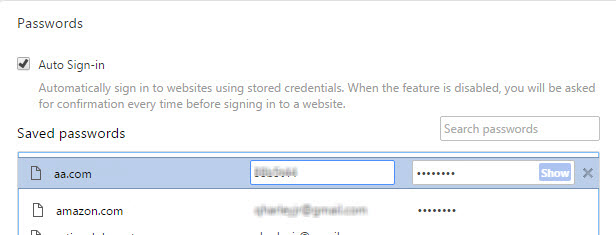
- Click on a site, then click Show.
- Enter your Windows password and click OK to reveal that site’s password.
Note: you can access this information also on your mobile at passwords.google.com
Cheers!

 Ask Quincy
Professor: You, and your unparalleled skill sets, are sorely missed. Hope all is well! Constance (or, if you prefer, one of your all time favorite students)
Sent from my iPhone