A Driverless Tesla?

Tesla’s  Driverless Assisted Car

Following a software update that will soon be released, some Tesla owners will gain a co-pilot.

reverse

Although not yet driver-less, the software enhanced Tesla will:

  1. Self-park
  2. Change Lanes
  3. Use assisted steering to maintain speed, and distance from, other cars
  4. Warn the driver against drifting out of the lane

For more on this, and to view the Tesla Model S Auto-Steer test drive click here to continue to TechCrunch


Additional reading…

Cheers!

hɔuᴉnb

Is Print Media Dead? 

Who reads Condé Nast publications?

We all know that eReadership is on the rise. So who’s still flipping pages?
Scott Batemen (twitter@Disalmanacarian) asks and answers this question with this satirist infographic.
scott-bateman-venn-diagram

Swiss Scientists Program Robots To Build Bridges Autonomously

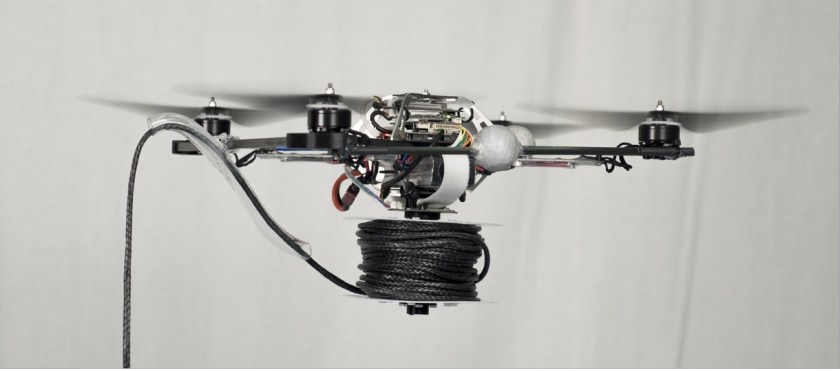
AutonomosDrones -ETH

University researchers at the Swiss Federal Institute of Technology (ETH) in Zürich have designed drones that work together to build a rope bridge. Watch this cool video to see them in action.

For more, follow this link to original QZ.com article:

Swiss Health Insurer Tests Fitness Trackers That Penalize Inactive People

CSS, one of the country’s biggest health insurers, launched a pilot project in July, in which the company tracks the movements of 2,000 volunteers on a daily basis using digital pedometers. The program is intended to aid insurance companies in tailoring their offers to their customers’ needs.

For more click here to view the original article on Quartz.com

Happy Birthday, Mario!

Super Mario Bros turns 30 today! Type Super Mario Bros into a Google Search screen for celebratory easter egg. Continue reading to learn of our plucky plumbers origins

quincy harley jr's avatarQ's place

Happy Birthday, Mario!(July 9) 1981Nintendo released the arcade game Donkey Kong (pictured), which featured the debut of Mario, “one of the most famous characters in video game history”
-wikipedia’

He wasn’t the headliner; that honor would go to the orange, barrel throwing, ape on the top girder.

Nevertheless, his sheer pluck and determination, to say nothing of his hammer wielding hi-jumping hi-jinks, would see him through to get the girl (Pauline), movie deals, and several several successive video-game variations.

Proving once again that if you want to succeed, jump softly and carry a big hammer.

Way to go  Donkī Kongu!

(oh, you too Mario!)

now whatever happened to Pauline?

View original post

Cascading Data Validation Lists

..with thanks to  Melodie S. for her help with this post.

A dear associate of mine asked for assistance with the following: How can you dynamically link a validation list, so that choices in one column control the list displayed in another?

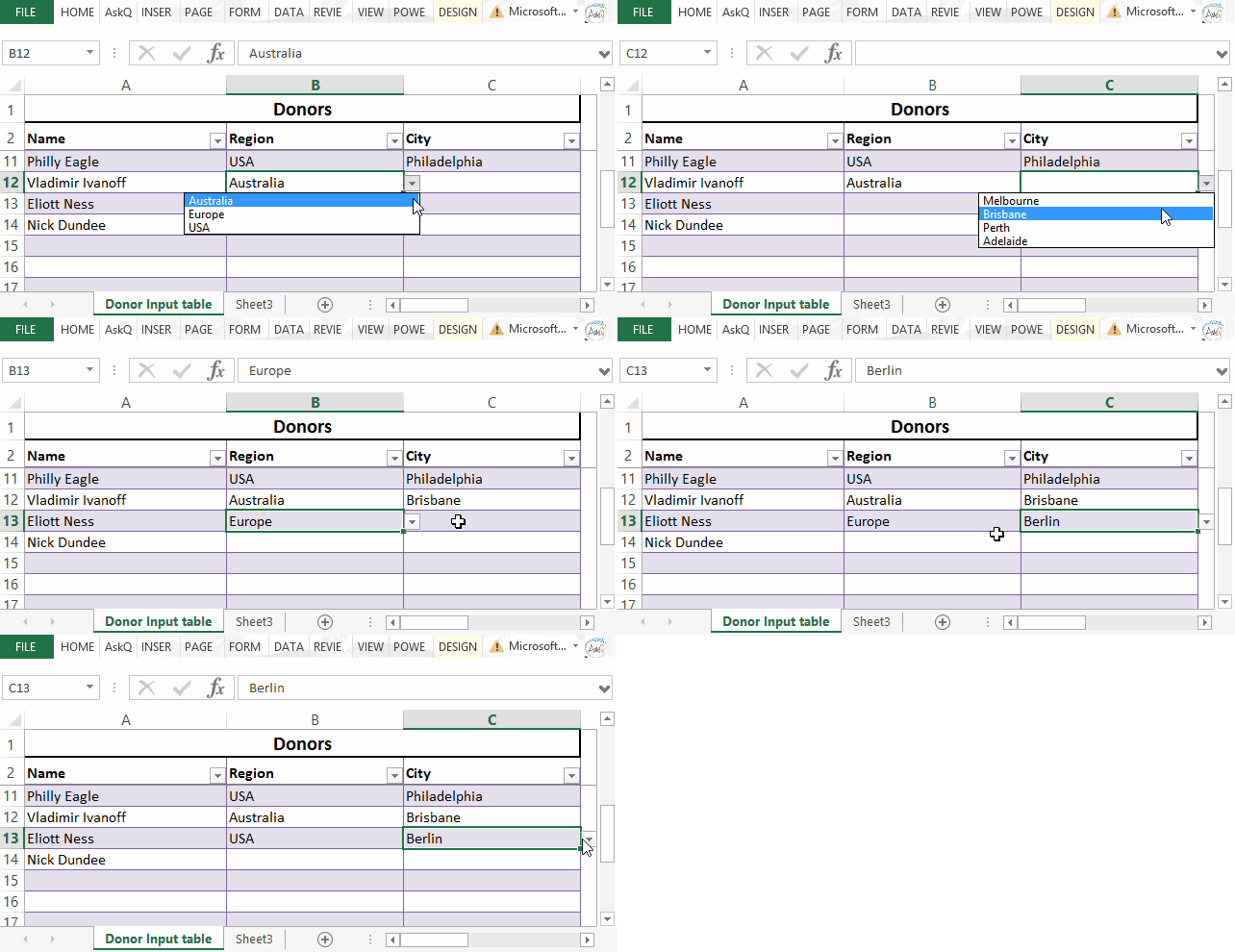
Cascading Data Validation Lists3

The example above illustrates a Region – City validation list. The selection of USA in the Region column will display only U.S. Cities; selecting Europe will display only European ones.

The first step is to create Defined Names for the Regions and each of the City groups.
Cascading List - Named Ranges

Creating Defined Names:

  1. Select the cells that make up the list. Do not include the list header in your selection.
    For example, to create the Region list in the above example, select E3:E5. 
  2. Click in the Name Drop-down.
  3. Type a name for the list and press Enter.
    Note: Names must begin with a letter and should not include spaces.
  4. Repeat steps 1-3 for each list (i.e., USA, Europe, Australia).

=INDIRECT(ref): Returns the reference specified by a text string.

Using the INDIRECT function to reference the value in the Region column (e.g, Australia), the data validation list will display contents of the matching defined name (e.g., Brisbane, Perth, etc.)

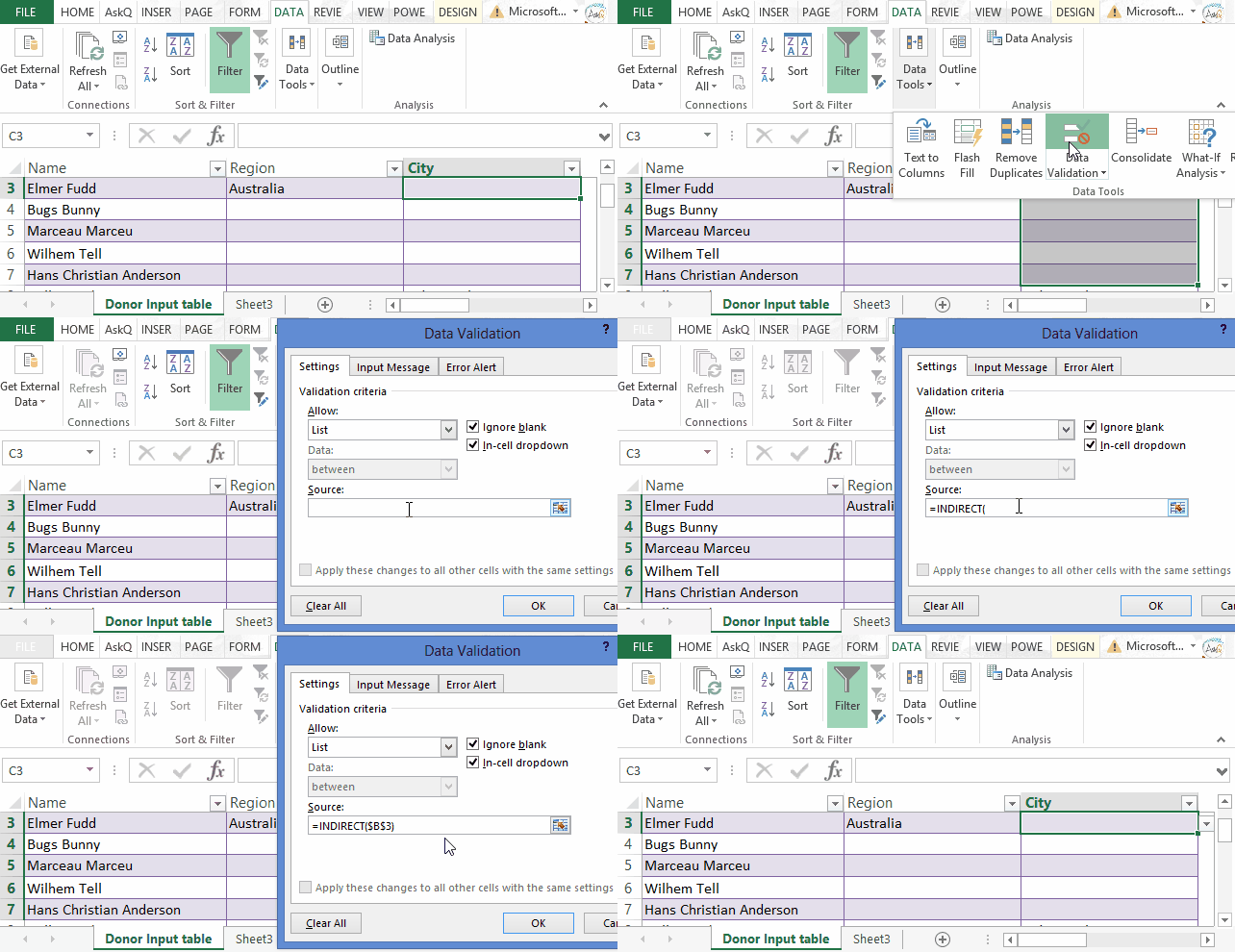
cascading list validation dialogs

Creating the Data Validation Lists:

  1. For the first input column (e.g., Region) select the the cells where data will be input (e.g., B3:B15).
  2. On the Data tab, in the Data Tools group, click Data Validation. The Data Validation dialog appears.
  3. Click the Allow drop-down and select List.
  4. In the Source field type ‘=‘ followed by the appropriate Defined Name (i.e., =Region )
  5. Click OK.
  6. For the second input column (e.g., City) select the the cells where data is to be input (e.g., C3:C15).
  7. On the Data tab, in the Data Tools group, click Data Validation. The Data Validation dialog appears.
  8. Click the Allow drop-down and select List.
  9. Click in the Source field, type ‘=INDIRECT( ref ), where ref is the cell reference of the first Input cell in the prior column; e.g., =INDIRECT(B3) .
  10. Click OK.

Cheers!

hɔuᴉnb

Additional reading:

Windows Emoji Keyboard

In this, my last post honoring World Emoji Day (promise), I showcase the emojis available with Windows Touch Keyboard.

In addition to the new emojis in GMail, and the hidden emojis in Skype, did you know that you can access emojis using Windows’ on-screen keyboard?

The on-screen keyboard (aka, Touch Keyboard), available to Windows desktop since versions 8, includes emoji characters similar to those used on iPhones and iPads.

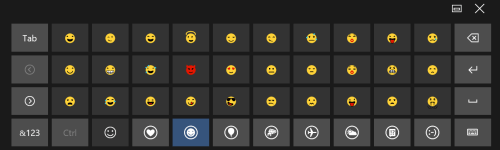
emoji keyboard2

Accessing Emojis Using Windows Touch Keyboard

  1. In Desktop mode, RIGHT+CLICK on the taskbar, point to Toolbars and select Touch Keyboard. The Touch Keyboard icon TouchKeyboard Icon. now appears on the Taskbar.
  2. Click (or tap, if using a tablet) the Touch Keyboard icon to display an onscreen keyboard.
  3. Click the emoji key Emoji button_66 to display emojis.
    emojiKeyboard
  4. Click the desired emoji. That emoji is inserted at the current cursor position.

Press ‘X‘ to close the Touch Keyboard when done.

Cheers!

Additional reading: