More bad news for Uber: one of the ride-hailing giant’s self-driving Volvo SUVs has been involved in a crash in Arizona — apparently leaving the vehicle flipped onto its side, and with damage to at least two other human-driven cars in the vicinity.
Click the settings icon and select Android Device Manager.
Your phone’s location will appear highlighted.
Select preferred option(s):
a. Click Ring to have your phone ring.
b. Enable and Select Lock to secure your phone.
c. Click Erase to wipe your personal data.
Traffic, road work and accidents all complicate the UPS delivery schedule, but none of these land-based impediments should deter a drone, right?
UPS announced today that it has successfully delivered a package in Florida using an autonomous drone that launched from one of its delivery trucks. The test is the first step in what the company hopes could one day become a more routine use of drones for package delivery.
UPS is betting the driver-drone pairing will double their efficiency. The driver can complete one delivery and dispatch the drone to another, later rendezvousing at some point along the return route.
yeah, but how will the drone look in brown shorts?
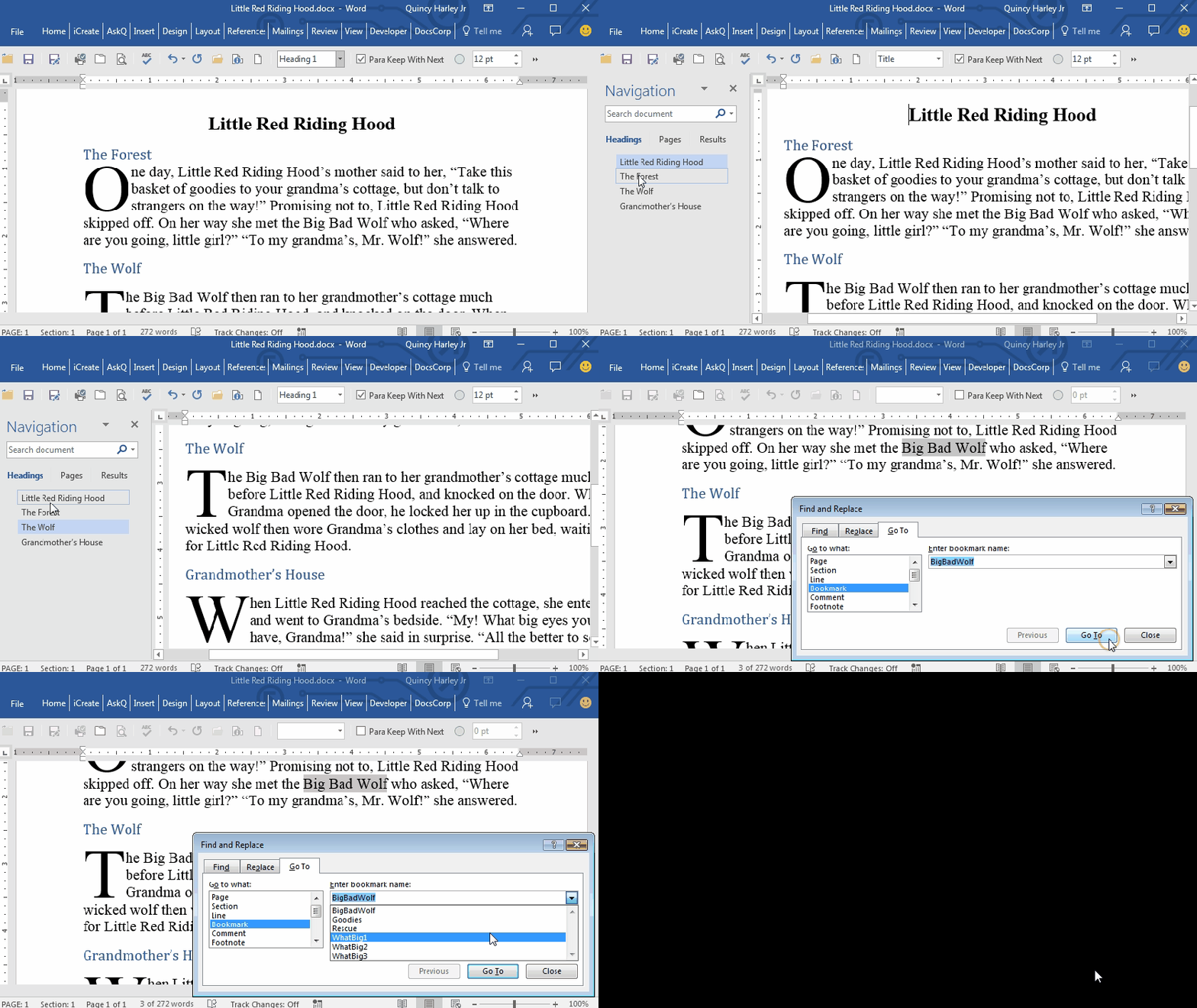
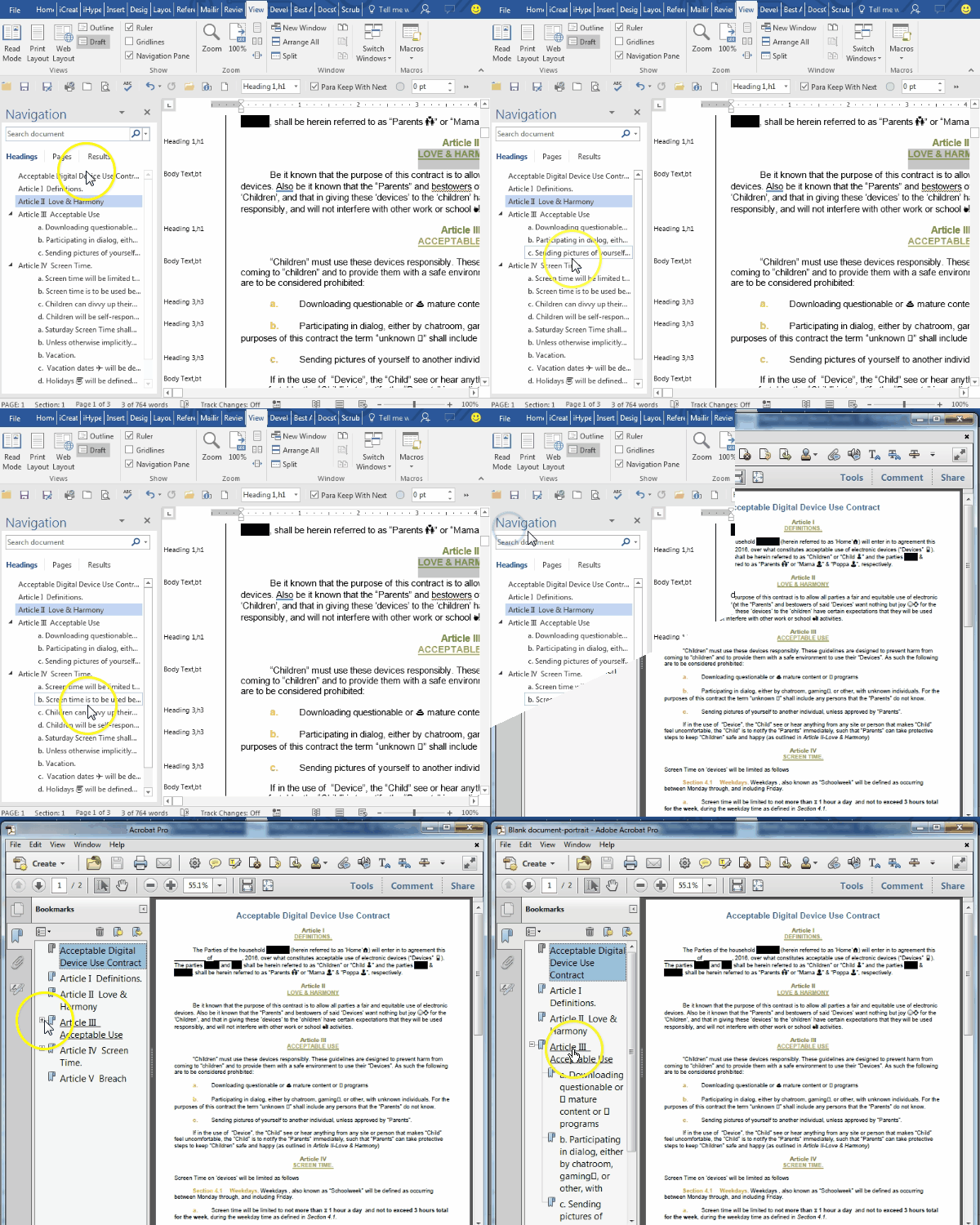
In addition to making it easy to generate PDF bookmarks from a Word document (click link to see how) , Headings and Bookmarks afford your reviewers an easy method of navigation.
Here are shortcuts to Applying Heading Styles and Creating Bookmarks.
To quickly apply Heading styles
Select the item by placing insertion point anywhere on that line of text (Heading styles will auto-apply to the entire paragraph).
Hold CTRL and SHIFT down and press 1, 2, or 3 to apply that corresponding outline level (e.g., CTRL+SHIFT+2 applies Heading 2 style).
Note, only the first 3 Heading styles have shortcut keystrokes pre-assigned to them. Alternatively, you can also Press CTRL + SHIFT + S (Apply Style shortcut) then select or enter the style name.
To create Bookmarks
Select the text to bookmark. Note: Unlike Heading Styles, you must select all text to be included in the bookmark.
Press CTRL + SHIFT + F5. The Bookmark dialog appears.
Enter your bookmark name:
-name can contain only letters and/or numbers
-name cannot begin with a number
Click Add.
Note: If you use the same name as an existing bookmark the original will be overwriten without warning.
Aston Martin unveiled its entry into self-autonomous vehicles with the AM-RB 001
Editorial note: were I working for RD it would’ve been designated AM JB 007 for reasons obvious to every Bond fan.
Assuming you’re willing to give up the wheel on this sleek beast, this wonder will boast all the self-automation features (car-avoidance, self-park, lane change) features that we will eventually all grow to know, love and expect of our cars. In addition AM is placing a focus on cyber-security; likely in response to reports we seen of car systems being compromised.
Which threat is greater: car-jacking or car-hacking?
Either way, the model, which debuted this week at the Toronto Car show, isn’t available yet, so we’ve time to start saving our pennies and pounds.
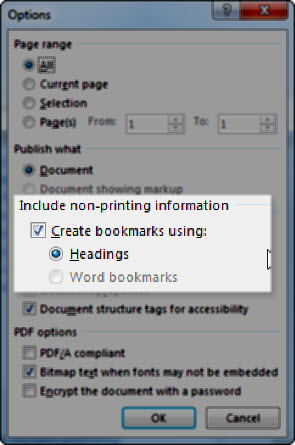
An earlier post showed an easy keyboard shortcut for creating bookmarks. Here’s an even easier method of creating a PDF from a Word document, where the bookmarks, practically, create themselves. And the beauty of it is that it preserves the outline hierarchy (i.e. creates indented bookmarks) as defined in your document.
Note:The document must either be in outline format (with Heading styles), or formatted with Word-generated bookmarks.
Reformatting a list of names is challenging when some of the names have middle names and others do not. Using Word’s Advanced Replace dialog and wildcards makes it easy to rewrite a list in Lastname, First M. format.
3 minute e-Learning demo:
To Reformat a List of Names to Last, First M.
Select your list of names.
Press CTRL+H. The REPLACE dialog appears.
If necessary click More button to display full dialog.
Check Use Wildcards.
In the Find what field type: (*) ([! ]@)^13 Important:observe spaces.
In the Replace with field type:\2, \1^p Important:note thespace after the comma.
Click Replace All. When prompted to “..continue searching the remainder of the document” click No.
Close the dialog.
Why it works
The find pattern looks for two groups: first name with optional middle name or initial and last name.
(*)_ finds expression1, first and middles names
([!_]@)^13 finds expression2, the remainder of name up to and including hard return (ascii char 13)
These names can now be referred to as expressions \1 and \2. In our replace statement we transpose them, separate them with a comma and space, and end with a hard return (^p).
\2,_\1^p
Note: _ is used above to illustrate use of space.
Codes that work with Find and Replace
To find
Type
Paragraph mark ( )
^p (doesn’t work in the Find what box when the Use wildcards option is turned on), or ^13
One or more occurrences of the previous character or expression
@ ex: lo@t finds lot and loot.
Any single character except the characters in the range inside the brackets
[!_] ex: t[!a-g]ck finds tock and tuck, but not tack or tick.

 icon and select Android Device Manager.
 will appear highlighted.



 )
) Ask Quincy