GoogleLens, is making its presence known, as a stand-alone app, and as an upgraded feature of Photos (for select Android phones*). With Lens’ OCR (object-character-recognition) capabilities, you can easily:
*16-Mar update: Google Lens now also avail on iOS on devices.
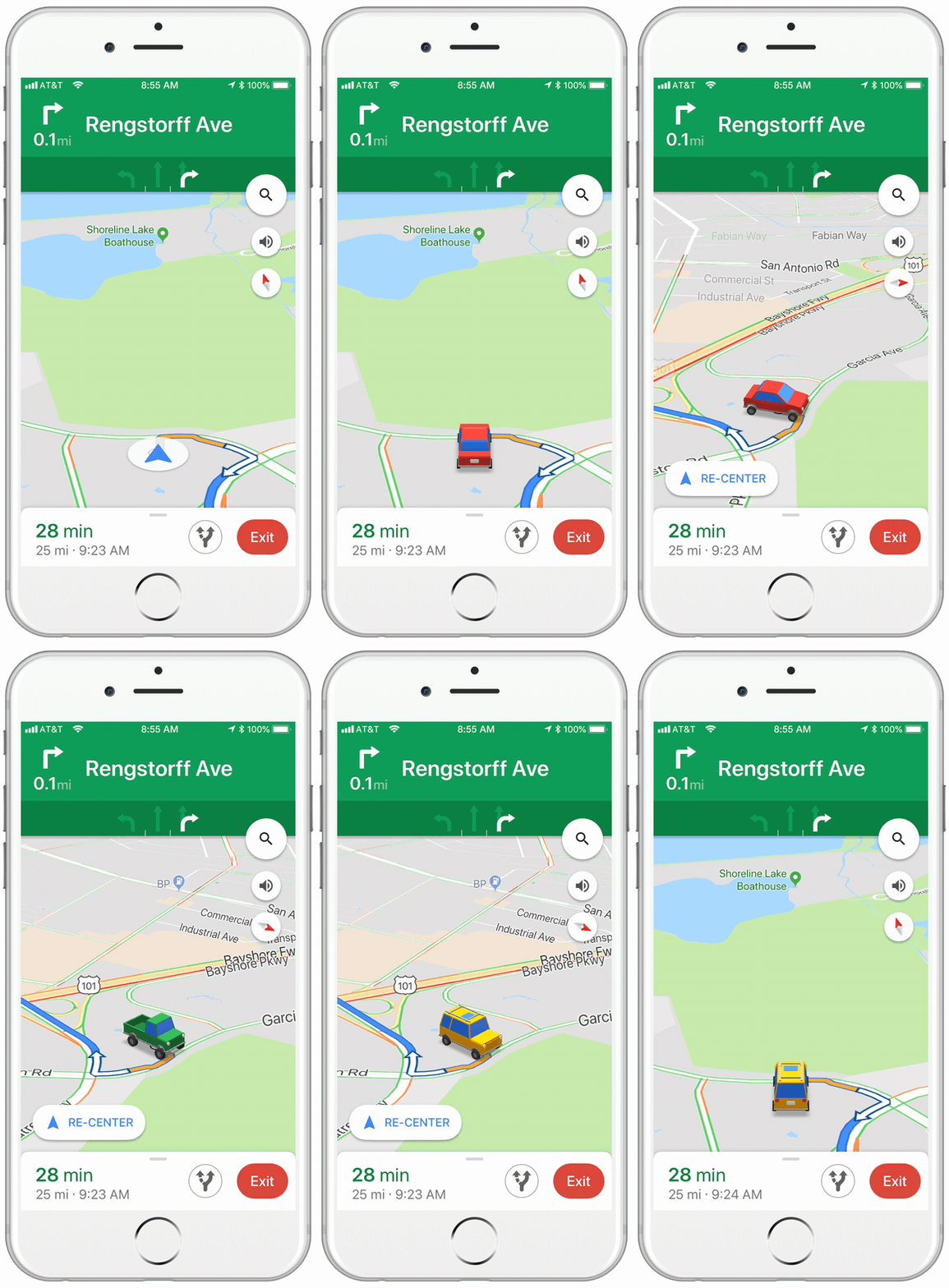
Google is having a little fun with the date March 10 (a cheeky way to spell Mario) by adding this colorful character to GoogleMaps. Android and iOS users with the updated app can request directions and have the plucky plumber/racer show them how to get there.
To Activate Mario Time
Launch Google Maps
Click GO, and enter starting point and destination
Click question mark, , then click LET’S-A GO!
Optionally, you can share Mario’s trip to @GoogleMaps on Twitter and/or tag it #MarioMaps in Instagram (but be careful of posting personal location info).
NEW: GoogleMapsLocation Sharing, available to those with and those without Googleaccounts, enables you broadcast your location to those you choose.
Used in connection with Maps’ Directions feature (aka, Drive mode) you can automatically send updatedETA information, so lovedshared ones will know whether you’re stuck in traffic or have dropped into the pub for a pint.
Share your location with other Google account users…
On your phone or tablet, open the Google Maps app .
Tap Menu Share location Add People .
Tap Select People.
Choose who you want to share with and for how long.
Tap Share.
..or with those that do not have a Google Account
On phone or tablet, open the Google Maps app .
Tap Menu Share location.
Tap More Copy to clipboard.
Using preferred messaging or mail app, paste link and send to intended recipients.
To stop sharing your location
Open the Google Maps app .
Tap Menu Share location.
Tap next to shared person to Remove.
To share your ETA
After you start your drive, you can share your destination, estimated arrival time, and where you are on the route.
Open the Google Maps app .
Set a driving destination.
After you start navigation, tap MoreShare trip progress.
Choose a person from the list.
Tap Share.
Location Sharing will stop when you reach your destination or stop navigating. To stop sharing before you arrive, tap More Stop sharing.
See where someone is
If someone shares their location with you, you can see them on the map.
Open the Google Maps app .
Tap Menu Share location. Location sharers will appear as icons.
Select person; the map will adjust to display their location.

 .
.


 , then click LET’S-A GO!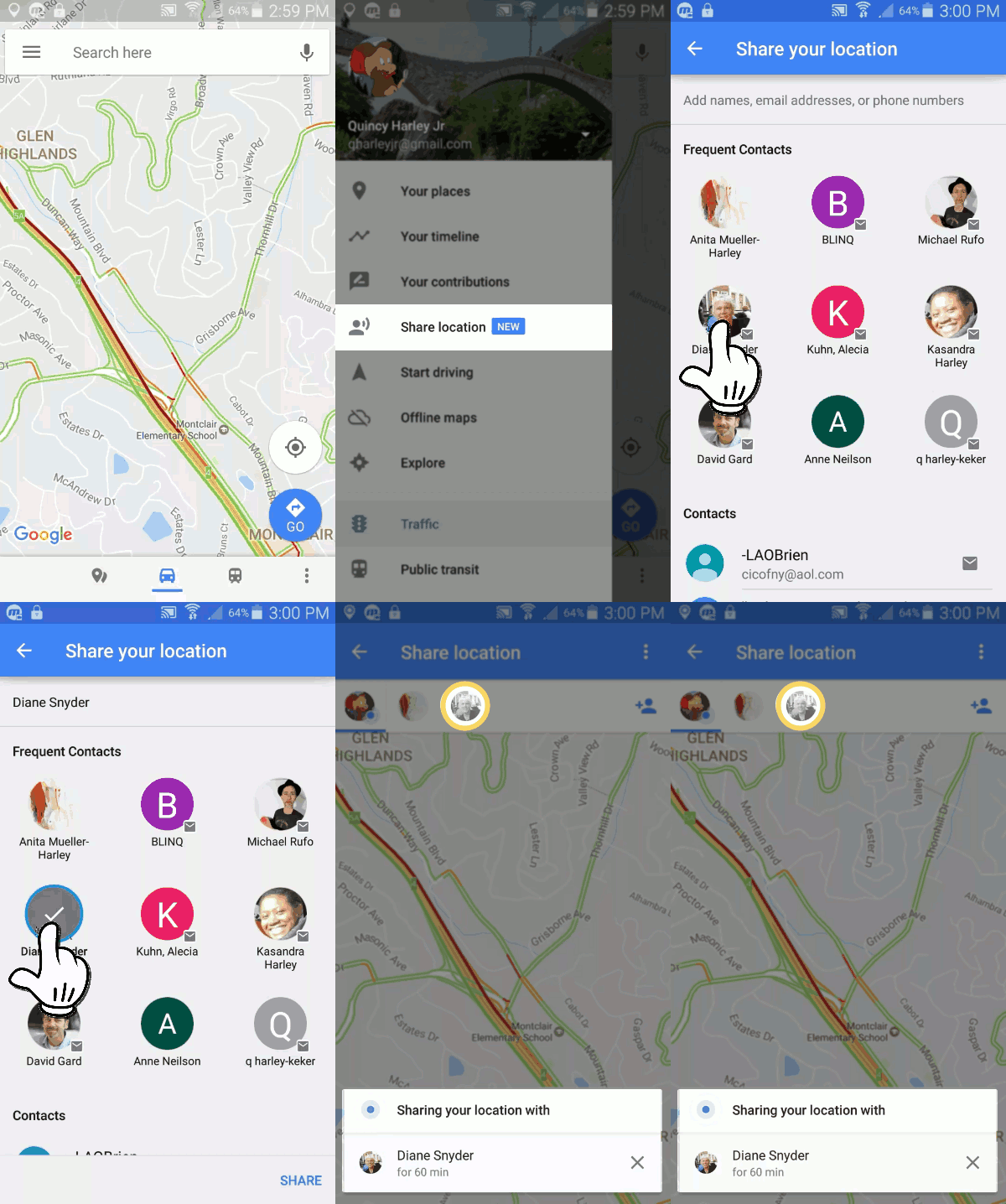
 .
.
 Share location


 . If no pin is visible, in the bottom left, click PAC-MAN.
 Ask Quincy