Excel Text 3 of 4: Using SEARCH, MID & CELL to Display Sheet Name

Linking the worksheet name to a cell in the spreadsheet is easily accomplished using Excel’s CELL function. Once joined by the MID and SEARCH functions, you need only change the sheet’s name and the linked cell will update to match.

Click to view at full resolution

Displaying the Sheet Name in a Cell

Type (or copy and paste) the following formula into a cell

=MID(CELL(“filename”),SEARCH(“]”,CELL(“filename”))+1,100)

Note

  • The file must be saved; the CELL function will not return a value on an unsaved file.
  • Press F9 (if necessary) to update the cell after a renaming a sheet.
MID returns a portion of text based on starting position and number of characters. =MID(“Task Quickly”,2,5) returns “ask Q”; starting with the 2nd char, 5 charachters long.
CELL returns info about the cell, file or sheet. =CELL(“filename”) returns the path, filename and sheet.
E.g., C:\[Balance.xlsx]Sheet1
SEARCH returns  the number where the first occurrence of the search text is found, regardless of case.* =SEARCH(“A”,”Quantity”) returns 3;  ‘A’ is the 3rd character.

*The FIND function works similar to SEARCH but is case-specific.

To learn more about each function and understand why this works, watch this ~2½ minute video:

Cheers!

hɔuᴉnb

Additional reading:

Amazon wants an army of drones to chase you down to get you your package

Amazon’s drones will find you when you’re not at home. If this patent comes to fruition I can re-enact Hitchcock’s “North by Northwest” airplane scene, Millennial-style!

Excel Text 2 of 4: Change Case

Changing case is easily accomplished using Excel’s text functions.

Text 2-UpperCase10fps
Click to enlarge image
UPPER convert to upper case =UPPER(“Kanye”) returns KANYE
LOWER convert to lowercase =LOWER(“KIM”) returns kim
PROPER convert 1st  letter of each word to uppercase =PROPER(“north west”) returns North West

Convert Text to Uppercase

  1. In a blank cell enter =UPPER( text ), where text refers to the cell containing text to reformat. A copy is created in uppercase.
  2. Select the newly created copy and press CTRL+C (Copy).
  3. Select original cell.
  4. RIGHT+CLICK and select PASTE VALUES.

For 45 second video, click here:

Cheers!

hɔuᴉnb

Additional reading:
Excel Text Functions 1 of 4: =LEFT() and =RIGHT()

For 60 second video, click here:

During the next series of posts I will demonstrate some commonly used Text functions. In the illustrated example we populate a CustomerCode column by combining

  • the first letter of the first name,
  • the first 4 letters of the last name, and
  • the last 4 digits of the phone number

=LEFT

Returns the leftmost character(s) of a cell, as specified by the optional Num_chars argument.

LEFT Right Functions_left 4d
click image to view at full resolution


Using the LEFT function to copy the leftmost characters of a cell

  1. Select cell to display the result.
  2. On the Formulas tab, in the Function Library group, click Text drop-down and select LEFT.
  3. In Text field select or type cell containing text.
  4. In the Num_chars field enter the number of characters to copy. When left blank the result is only the leftmost character.
  5. Click OK.

Concatenate using ‘&’

Use the Ampersand (&) to concatenate (combine) text. For example, with “North” in A1 and “West” in B1, the formula =A1&B1 returns “NorthWest”

=RIGHT

Returns the rightmost character(s) of a cell, as specified by the optional Num_chars argument.

Using the RIGHT function to copy rightmost character(s) of a cell

  1. Select cell to display the result.
  2. On the Formulas tab, in the Function Library group, click Text drop-down and select RIGHT.
  3. In Text field select or type cell containing text.
  4. In the Num_chars field enter number of characters to copy. When left blank the result is only the rightmost character.
  5. Click OK.

Cheers!

hɔuᴉnb

Additional reading:

Comments and questions are always welcome!

Matternet To Test The First Real Drone Delivery System In Switzerland

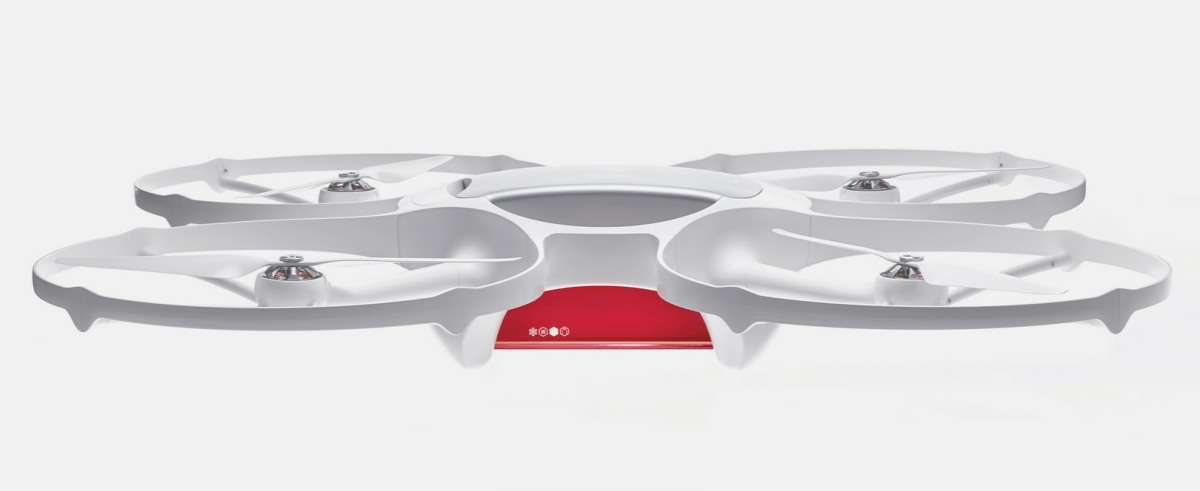
Drone delivery service, although stalled in the US, is making headway worldwide. Matternet, having tested their delivery drones in remote areas within Bhutan and Haiti, will begin testing with the Swiss Post

PDF Bookmarks Made Easy

Here’s a quick and easy method to create a bookmarks in Acrobat Professional and Nuance PDF Pro.

CreateBookmark491a

Creating a Bookmark

  1. Using the Select tool Select, select the text to bookmark.
  2. Press CTRL + B.

The bookmark reference is created from the selected text. CLICK + DRAG the reference to arrange, demote, or promote the bookmark.

Cheers!

hɔuᴉnb

Related posts:

Comments and questions are always welcome!

April Fools Easter Eggs

Traditionally, today is a great day for the creative departments of some otherwise staid websites to let their hair down by way of an Internet prank.

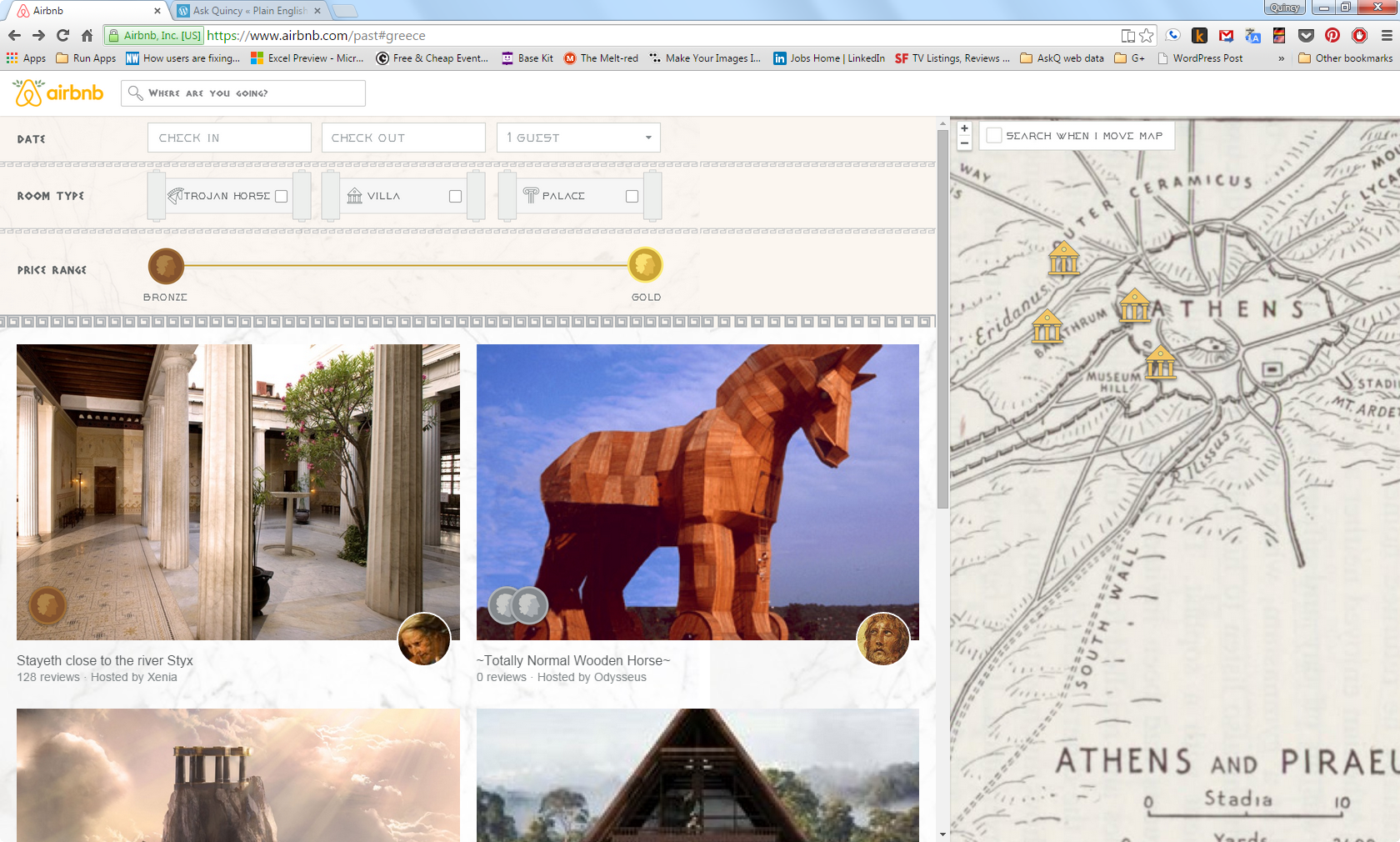
Continuing with the Easter egg theme (and celebrate the Greeks, who, allegorically, dropped the original Easter egg on an unsuspecting city of Troy), I present Air BnB’s Bronze Era Rentals page. Click fast; traditionally these pages don’t live long.

airBnB

Also, for an infopic on some other classic hoaxes (e.g., Burger King’s left-handed sandwich wrapper) follow this link to the Quartz article.