In honor of the 40th anniversary of J.K. Rowling’s seminal classic, Harry Potter, this post magically exposes a hidden excel function!
Date Difference between J.K. Rowling’s Birthday and Harry Potter Movie Debut
Ever wonder if your spreadsheet is keeping something from you?
DATEDIF is an under-documented function. It allows you to calculate the difference between two dates. Although it doesn’t appear in the Function Wizard (it exists to insure backward compatibility with Lotus and earlier Excel versions) it is a powerhouse when it comes to calculating date differences.
Using DATEDIF function:
Format: =DATEDIF ( date1, date2, “interval”)
date1must be the earlier of the two dates or an #NUM error is returned.
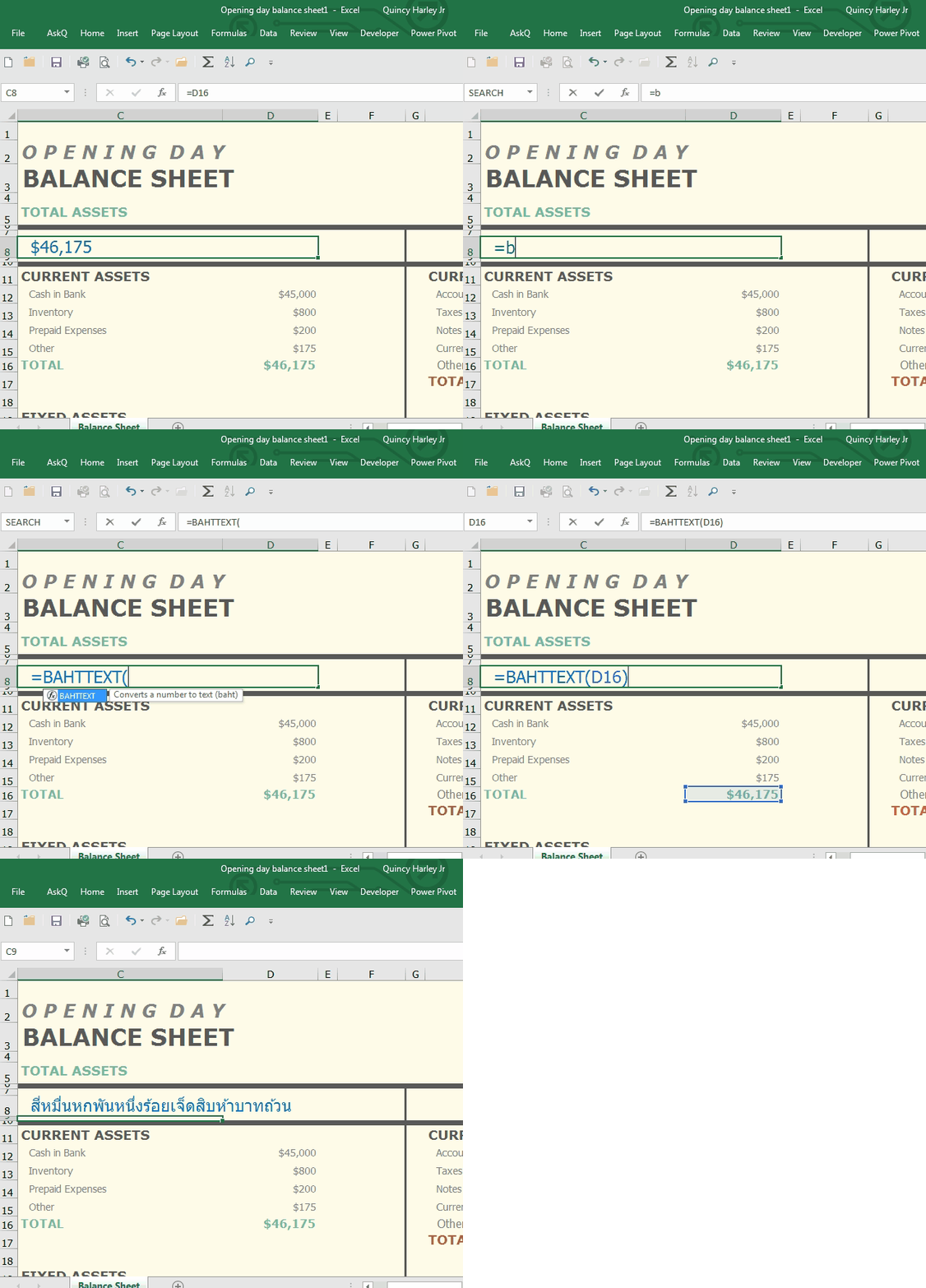
Ever wonder what your birthday looks like expressed in roman numerals? Want to display your travel expenses using Thai?
Use these functions to convert numbers to their respective lingo.
Formula
Description
Example
Result
BAHTTEXT
Converts number to Thai text
=BAHTTEXT(451)
สี่ร้อยห้าสิบเอ็ดบาทถ้วน (Four Hundred and Fifty-one)
ARABIC
Convert Roman Numeral to Arabic
=ARABIC(MCDXCII)
1492
ROMAN
Convert Number to Roman Numeral
=ROMAN(1984 , [0] )*
MCMLXXXIV
*ROMAN, has an optional argument, format . When format is included, the number is expressed differently, ranging from classic (0) to simplest (4). When this argument is omitted, the classical format is displayed.
NEW: GoogleMapsLocation Sharing, available to those with and those without Googleaccounts, enables you broadcast your location to those you choose.
Used in connection with Maps’ Directions feature (aka, Drive mode) you can automatically send updatedETA information, so lovedshared ones will know whether you’re stuck in traffic or have dropped into the pub for a pint.
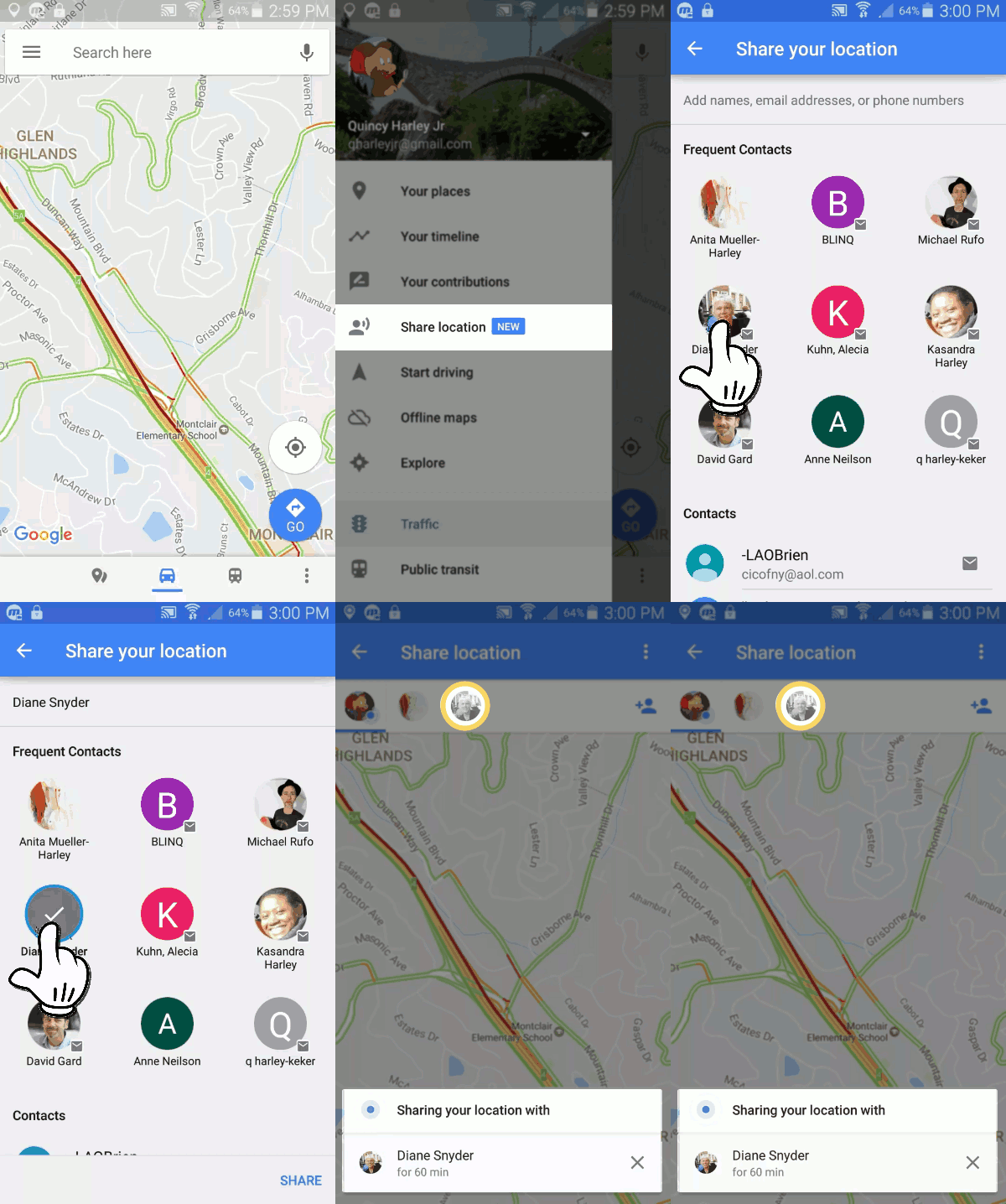
Share your location with other Google account users…
On your phone or tablet, open the Google Maps app .
Tap Menu Share location Add People .
Tap Select People.
Choose who you want to share with and for how long.
Tap Share.
..or with those that do not have a Google Account
On phone or tablet, open the Google Maps app .
Tap Menu Share location.
Tap More Copy to clipboard.
Using preferred messaging or mail app, paste link and send to intended recipients.
To stop sharing your location
Open the Google Maps app .
Tap Menu Share location.
Tap next to shared person to Remove.
To share your ETA
After you start your drive, you can share your destination, estimated arrival time, and where you are on the route.
Open the Google Maps app .
Set a driving destination.
After you start navigation, tap MoreShare trip progress.
Choose a person from the list.
Tap Share.
Location Sharing will stop when you reach your destination or stop navigating. To stop sharing before you arrive, tap More Stop sharing.
See where someone is
If someone shares their location with you, you can see them on the map.
Open the Google Maps app .
Tap Menu Share location. Location sharers will appear as icons.
Select person; the map will adjust to display their location.
Is it a cool scooter or a small motorcycle? The new BMW Motorrad Concept, LINK, is designed to be a cross between. By making this motorcycle smaller it is designed to navigate congested city streets like a scooter. The electric drive allows for a lower seat, so you don’t have that driving-on-a-bar-stool posture typical of gas-fed scooters. In addition it has:
A reverse gear, to aid in parking and other scenarios
Under-seat storage for that funky headgear you insisted on getting
Cut-away display for the cool built-in, on-board tech
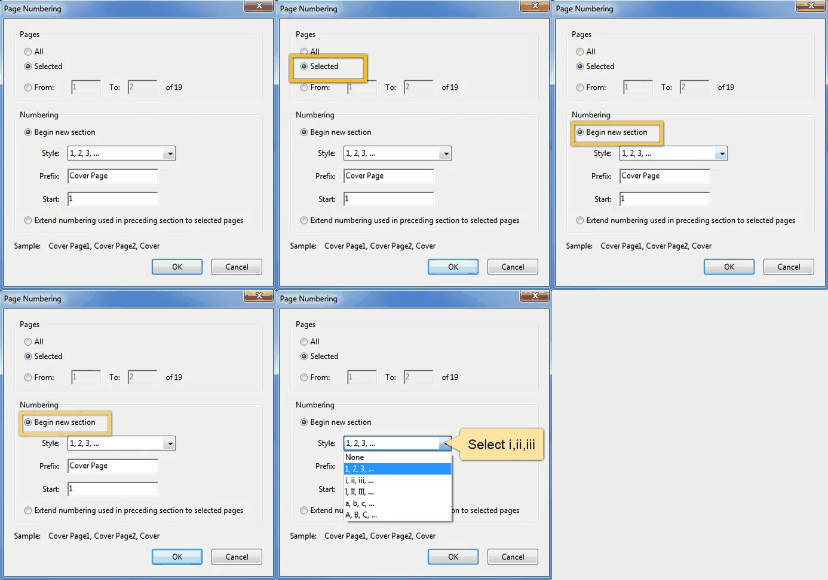
Often times, a PDF’s pagination doesn’t match the pagination as displayed in document. For example, a document containing caption, contents and authorities pages, may have its first narrative page set 7 pages into the file. This makes navigation problematic.
Starting this summer, Johannes Oerlemans of Utrecht University and his colleagues will blow artificial snow onto a small glacier at the foot of Diavolezzafirn, in the south-eastern part of Switzerland. The hope is that a thin white sheet of snow will increase the sunlight reflected, and thus protect the ice underneath from melting, Oerlemans explained at the European Geosciences Union on Thursday (Apr. 27). If this $100,000 pilot project is successful, researchers hope they can raise funding to use the technique to protect the Morteratsch glacier, a huge tourist attraction that’s considered a national treasure—but is shrinking.


 .
.
 Share location



 Ask Quincy